How to Use the Forums
Forum Rules
It is important you read the rules
carefully and abide by them to avoid possible bans (temporary or permanent) or infractions, which can actually build up to a ban. If you enter a forum for the first time, the forum rules should automatically show. You will then be asked if you agree to the rules.
Members can sometimes unintentionally break the rules mainly because they have not read each of the forums rules (which is why this is important). If you do break the rules or Terms of Service, you risk receiving a ban at the discretion of the moderator.
Staff
TeenHelp has many different staff members with various roles and responsibilities. While all staff are here to help in any way we can, please note that we are NOT medical professionals. We are, however, here to listen and support you through a difficult time.
Project Coordinators - Project Coordinators are here for many things such as moderating, hiring staff, monitoring users and staff, dealing with technical problems, etc.
Project Advisors - Project Advisors moderate and look over all of the forums as well as the chat room.
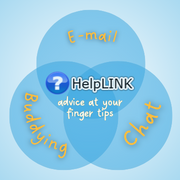
HelpLINK Mentors - Mentors are responsible for replying to HelpLINK requests [emails] sent in by users.
Live Help Operators - Live Help Operators work primarily on the Live Help system speaking 1-2-1 with users, although other staff members can work here as well.
Article Editors - Article Editors write and edit articles for our Articles section.
Buddies - Buddies are here to welcome you to TeenHelp.org and answer any of your initial questions.
Staff on Leave - Staff on Leave just refers to any member of staff who is currently 'on leave'.
To view a full list of our current staff members and their positions, please click
here. If you wish to contact any member of the staff, feel free to do so via
PM (mentioned below).
In addition, if you need advice and you would rather not post in the forums, don't hesitate use our
Live Help system (please note, however, that there may not be a staff member logged in, in which case you will need to try again later). Alternately, you could try HelpLINK, an email system set up for you to request help in a certain area and receive help from various mentors. For a place to be social AND get help, try the
Chat Room.
For further, more detailed instruction, please see
Obtaining Advice and Support.
Private messaging (PM)
A lot of staff and members will often say you can
PM them. This simply means you can send them a private message, which only the recipient can read.
To do this, simply click on their username (alongside the post they have made). Clicking on their name will bring a drop down of options. You should see "send a private message to (username)". You can also send a
PM by viewing the users profile, where the option will also be displayed under the "Contact Info" tab.
You can have the option of having a pop up window to alert you of any new private messages you receive as soon as you receive them. To activate this, simply go to the user CP (which can be found at the top left of the page on the forums) and click on "Edit Options". In here, scroll down to the private messaging section, and tick the box you wish to.
Posting a new thread/topic in forums or responding to a thread
To post a new thread/topic in a particular forum, simply go to the desired forum and click on "
new thread" which is just above the list of threads.
Please make sure you post your thread in the correct forum to ensure you get the right advice, and only post your thread once.
To post a reply to a thread, simply click on "
new reply" found at the bottom of the page, or enter your message in the box below the thread.